Video of the Day

Thursday, 24 December 2015

Make The Most Of A Custom Google Analytics Report & Segments

Posted By: Unknown - 00:27


Custom reports allow you to make the most out of Google Analytics and look at statistics in ways that you hadn’t thought of before. It’s completely customizable, free to use and easy to set up. I have multiple reports set up that I can click on when I enter my GA, so that I can see the exact information that I’m looking to learn about, at the click of a mouse. This is one of the most powerful tools available to you and will teach you much more than you thought possible.

How to Make a Custom Report

When you open the custom reporting section, it can look quite confusing at first glance, but it’s not that hard when you start to understand what everything does. There are two main elements to custom reporting; metrics and dimensions. Metrics are the main statistics which you would typically study, such as site usage and content, and dimensions are the different values for each metric such as time on site and bounce rate. It’s really simple when you get started with making your own.
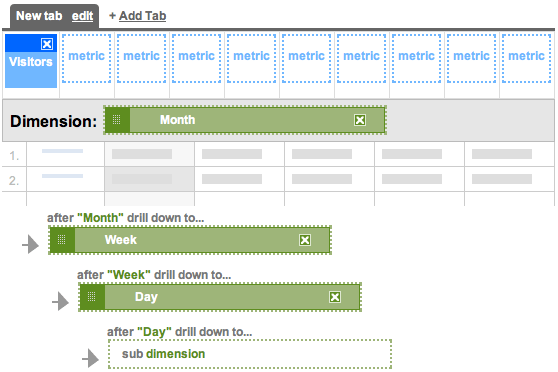
Firstly, you need to choose a metric that you want to work on and drag that into the metrics bar in the custom report. You can study up to 10 different metrics in one tab of a report at the same time, but if you run out of room, you can always add another tab. The metrics that you can chose from are Site Usage, which contains all the information about your visitors, Content, Goals, E-Commerce and Advertising. The last three metrics are more advanced and niched, so we won’t be going into too much detail about them. You use the drop down menus to choose which metric you want to use and drag it into the metric bar as shown below.
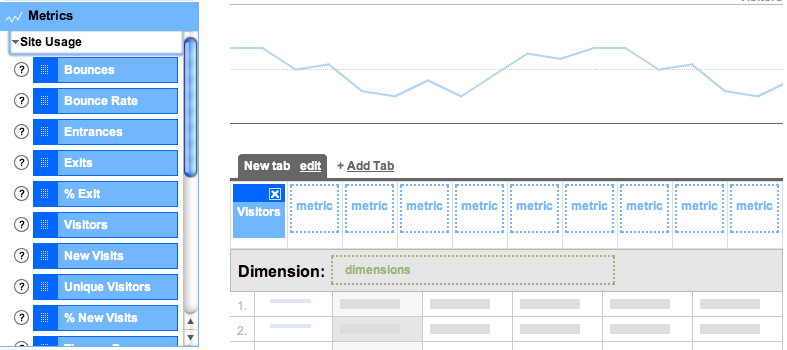
I’m going to make this report really simple to help you to understand it, so for now, I’m only going to use one metric – we’ll be looking at multiples further down this post. The next thing you’ll want to do is add dimensions to your report and that’s done much the same way as metrics, you simple drag them over from the left hand side of the page. When you choose a metric, it limits the amount of dimensions that you’re allowed to examine, so for example, when I chose visitors, I could only then look at Day, Week and Month.
Adding a dimension effectively cross references the metric to produce results. By adding Day to the metric of Visitors, I find out which days were the most popular and which days were the least popular, and I can then use this information to my advantage in the future. It basically lets you customize your Google Analytics results to provide you with information that you either wouldn’t have had before, or would have been hard to find.
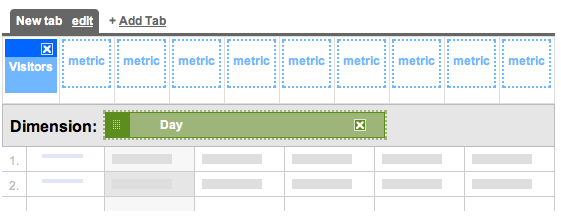
If you want to expand on this you can add further dimensions, just make sure that you add them in a sensible order. For example, I may have wanted to originally look at Day, but if I add Week below, it’s only going to show me the week that my selected day was in. So if you’re adding additional dimensions, make sure you add them in order. If you’re only looking to see which Day is the most popular then stick to the single metric, don’t try to make it more complicated because the most popular days may get lost in the Month and Week dimensions.
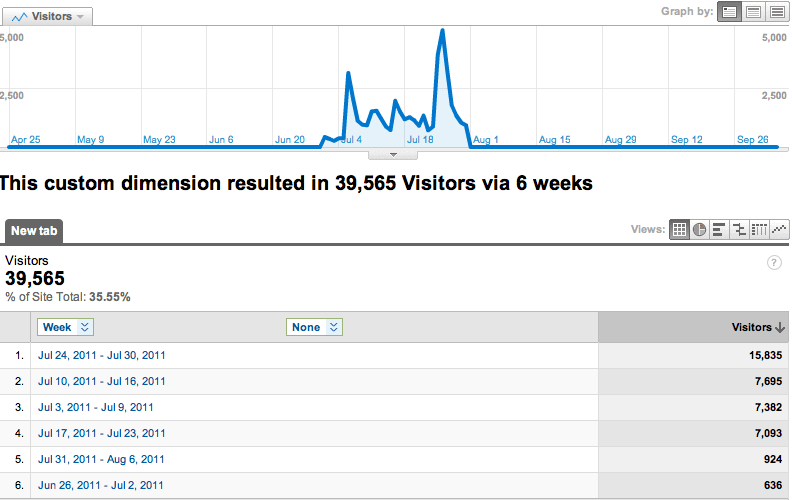
When you’ve put all of this together and click on either preview or create report then you’re taken to a more recognizable side of GA, where your results will appear. When you click on the results to investigate further, you’re provided with the next dimension, so for example, I clicked on the month of July below which was the most popular month. I’m then shown the graph for this time as well as a run down of the most popular weeks in this time. If I were to then click on these weeks, I would be taken to a very similar page, only this time it would have a run down of the days.
When you’ve finished with a report that you’re happy with, just make sure that you title it with a relevant name and click ‘Save Report’ at the bottom of the page. Now that we know how to put one together, lets have a look at some useful custom reports that you may want to consider making yourself.

Useful Custom Reports

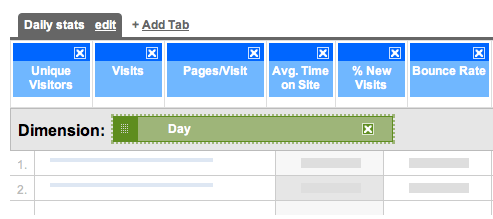
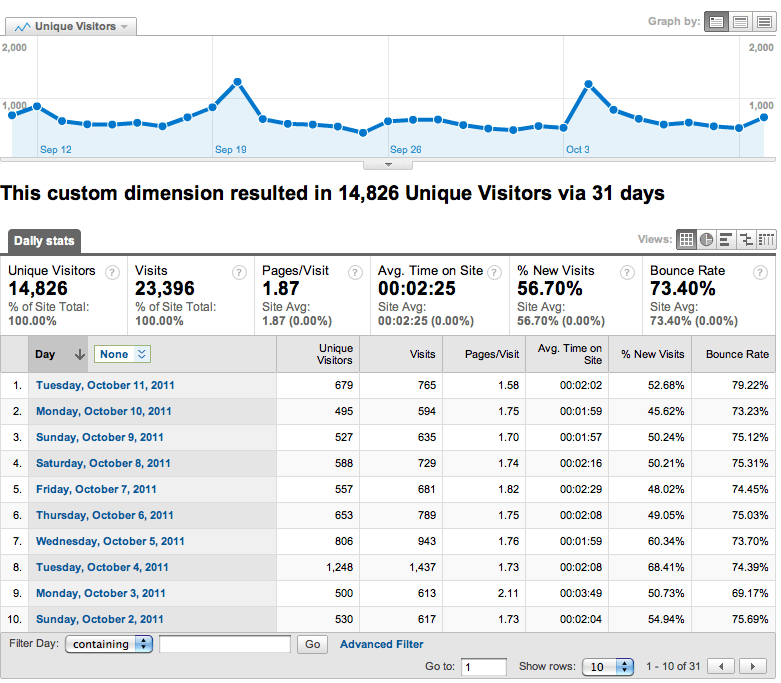
The first report that I recommend that you use studies the traffic on your site in a much more detailed way, by day. To do this, I examine the number of unique visitors, visits, pages per visit, average time on site, percentage of new visits and bounce rate all as metrics, and have the dimension set to Day. The time period you select is entirely up to you; if you want to know for the current day, then the choice is obvious, but if you’re looking to see how popular your site has been over the past week then you can select longer time periods. Here’s what my report looks like, followed by the overview.
To make things really easy for you, I’m sharing all of the custom reports that I’ve made in this post, so here’s the link for the report above. One of my favorite things to look at each week is which day was the most popular day because it helps me to understand when I should post my content. Taking this a step further, I like to examine what the most popular time of day by using this custom report which examines the amount of visits broken down by the hour and arranged by their popularity. If you go one step further, you’ll be taken to the source dimension which tells you exactly where all these visitors are coming from during a certain hour.
From these two reports, I can work out which is the best day of the week to post and what time during that day that I should be posting to get the best results. I didn’t include the Hour dimension in the original report because the result would have been dependent on how popular the day was. These reports are particularly useful if you’re planning on posting a top-list that you hope will do well.
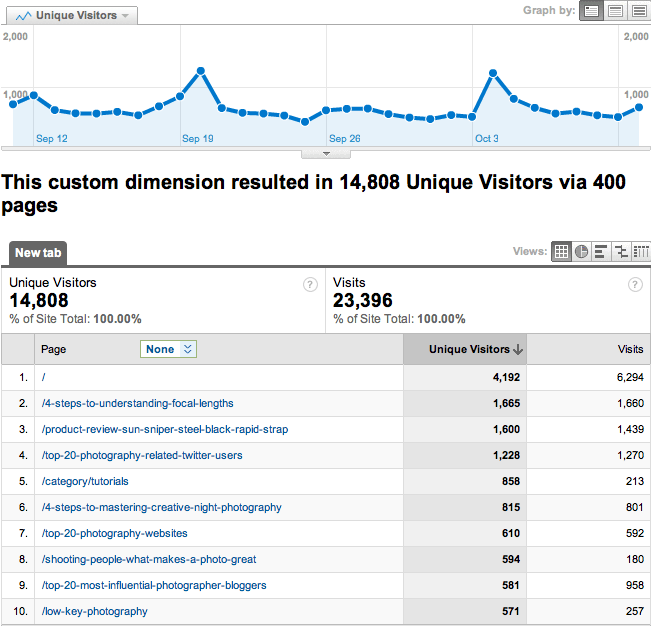
Something that GA is definitely lacking is a customizable section to look at the amount of unique visitors your website is receiving. By creating a custom report we’re able to see these results in a graph as well as look at some of the finer details about how the visitors have found your site. For my report, I’ve selected to view unique visitors and visits (for comparison) as the metrics and the dimensions as Page, Source and Keyword. Page is an obvious choice because it will tell you exactly which ones are the most popular posts, and Keyword is there to help you understand how people are finding your content. When you click on a page, it’ll take you through to the Source section, and if you click on Google, then you’ll be shown the top keywords which have taken the visitors to your site. This is always good to know as it gives you a good insight into what people are searching for and how relevant the results are. Here is my custom report –Unique Visitors by Page.
The bigger your website is, the more use you will have for some of these custom features such as revenue, and various goals that you set yourself. There’s loads of different variables you can try, so I suggest you go in and explore what works for you. Chances are you’ve been in GA before and not been able to find a statistic that you’re looking for, and quit in frustration. Custom reports put a stop to this as they open up many more answers to you.

Advanced Segments

Advanced Segmentation is a tool you can use to slice and dice your Analytics data with great precision. Advanced segments allow you to choose what types of visitors you want to be considered when generating the data for a report. If you find that you have a large amount of data but you’re having a hard time filtering the information into a report, then you can easily create your own segments and apply them to any report instead of creating different filters for each profile.
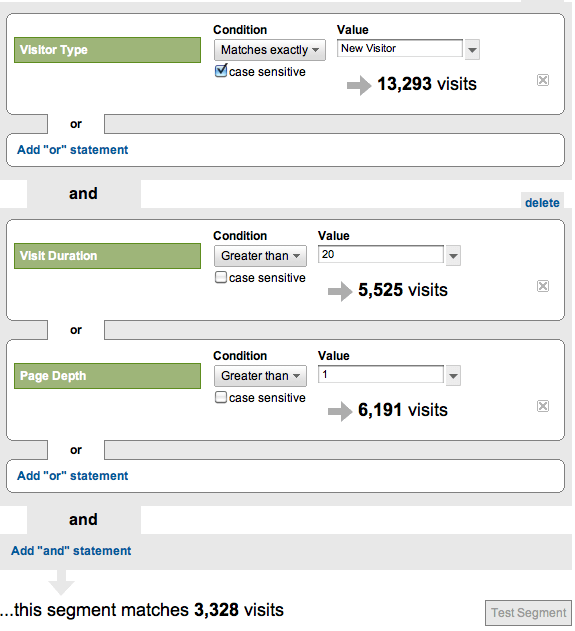
One of my favorite things to do is to track the quality of visitor that I’m receiving and there’s no better way to do this than to create and advanced segment which will filter out all of the information that I don’t want. A quality visitor for me is someone who spends over 20 seconds on the site, and views at least 2 pages. These are people who haven’t just come to visit a top list or a popular post that’s been shared on the Internet somewhere. The time factor is still relatively short, but the majority of visitors stay for under 10 seconds, so 20 seconds is still quite generous. When you look at all the factors together and press test, it’ll look something like the the image below.
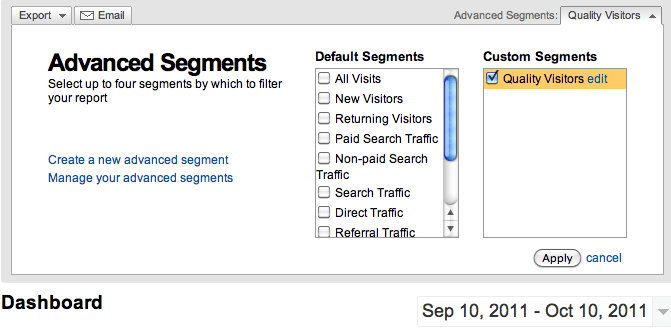
When you save your segment, you can save it and view it like any other Google Analytic result. To view it, go back into your advanced segment section and click on it, or use the drop down menu in the top right hand corner of your dashboard. It will update your dashboard with only information that fits within these parameters, and then you can carry on researching your website analytics with more accurate results. Here’s a link to the Advanced Segment.
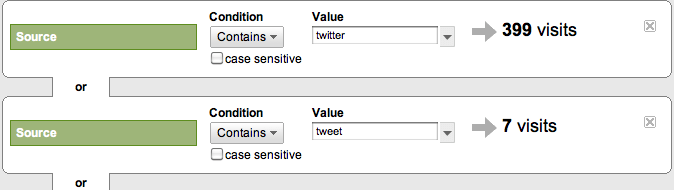
I do a lot of marketing through social media, which I suspect a lot of you do too, so it’s important for me to track my progress through these means. This is really simple, all you do is open up another advanced segment and add a list of sources with ‘or’ between them, so that the segment considers all of the results. Then make sure all of the condition parameters say ‘contain’ and then list the website name in the value box, like I’ve done in the image below. List as many sources as you wish to examine at a single time, and then save it down. Here’s the one that I use.
You can include more advanced segments such as the ones above, or keep it much simpler and only have a single parameter. I have a segment set up for Google traffic so that I can easily view my traffic from my dashboard and delve deeper into the statistics than Google previously allowed me. I have all of the information that I would typically look at, only now it’s specific to traffic that’s come from Google. This is really easy to put together, and here’s now you do it.

Combining Custom Reports & Advanced Segments

The excellent thing about Advanced Segments is that I can then use these new parameters to look more accurately at my custom reports. By using the segment on quality visitors, I now only examine the information that matters to the growth of my blog, which is the quality traffic. It will also help me to see which is the most popular content with people who are already following the website, so I can get a better idea about what they’re interested in learning.
All of this makes for a free program, that you probably didn’t realize could get even better. I use Google Analytics almost everyday and having this added functionality has really improved the quality of my results.

10 Design Elements All Big Blogs Have In Common

Posted By: Unknown - 00:25


Anytime you create something new, whether it’s a product, a service, or a website, start by taking a look at what others have created before you.
To help you set the foundation for your blog design, I’ve listed 10 design elements that almost all big blogs have in common and how you can implement them on your WordPress blog.
If you need a designer or developer to help you implement your new designs, go toAwesomeWeb.com

The 10 Big Blogs

To give you some hard data, I chose to use Mashable, TechCrunch, The Next Web, GigaOM, Seth’s Blog, Copyblogger, Problogger, KISSmetrics Blog, Freelance Switch, and The Oatmeal as examples for this post.

Header

The headers on nine out of ten of these sites were 100 pixels high or less. Most of them included the logo and a search bar.

Logo (10/10)

All ten of these blogs had their logo in the upper-left corner and hyperlinked it to the home page.
Gigaom Logo Header
The GigaOM.com logo is in the upper left and it links to the homepage.
How to implement the hyperlinked logo: Most WordPress themes (i.e. WooThemes, Thesis, Genesis, etc.) let you upload a logo through the theme’s design settings and it automatically links home.

Search Box (6/10)

Six of the ten big blogs had a search box on the right side of the header. Seth’s Blog and Copyblogger put their search bar towards the top of the sidebar. The KISSmetrics blog and The Oatmeal don’t have a search mechanism.
TheNextWeb Search Box
TheNextWeb.com’s search box is on the right side of the header.
How to implement the search box: You can place your search bar as a widget in the Appearance > Widgets area of your theme. If you don’t have a widgetized header, this is the php for the search box:
<?php get_search_form(); ?>
Place it within your header.php or your theme’s custom php file. If you’re not familiar with php, put it near the top of your sidebar within the widgets area.

Content Area

Eight out of the ten big blogs feature the content area on the left and the sidebar on the right. Here are a few more common design elements within the content area.

Social Buttons (Slider) (10/10)

All of the big blogs include social sharing buttons with Facebook’s Like/Share and Twitter’s Tweet being the most popular. Google’s +1 and LinkedIn’s Share buttons are also popular. Digg, StumbleUpon, and Reddit buttons aren’t listed as often as they used to be.
Both Mashable and TechCrunch have social sliders on the left side of the content that slide down as you scroll down the page. IncomeDiary has this too.
Techcrunch Social Sharing Buttons
TechCrunch.com’s sharing icons are in the left margin and they scroll down the page.
How to implement the social buttons: If you prefer not to hardcode the buttons into your theme, I recommend the LikeEasy Twitter ButtonWordPress Google +1 Button, andLinkedIn Share Button plugins. Use the Sharebarplugin to put a scrolling social slider on the left side of your content.

Related Posts (7/10)

Seven out of the ten of those blogs feature a related posts area at the bottom of every post. This encourages people to read more of your articles, spend more time on your site, and become more engaged with your blog or business.
FreelanceSwitch Related Posts
FreelanceSwitch.com features three related posts at the bottom of every post.
How to implement the related posts: I whole-heartedly endorse Rob Marsh’s Similar Posts plugin. You’ll also need the Post-Plugin Library plugin to get his series of plugins to work on your site.

Post Footer Call To Action (5/10)

Half of the big blogs have a very specific call to action at the bottom of the post. Usually the call to action is to subscribe or purchase.
The other five blogs just encourage you to share, comment, or click on an ad. One way or another, they all have a call to action.
TheOatmeal Call to Action
TheOatmeal.com’s call to action is usually to buy The Oatmeal book.
How to implement the post footer call to action: Since every theme works differently, it’s hard to give specific instructions here. All you have to do is hook a slab of HTML into your theme at the bottom of your content area and above the comments area.

Sidebar

The sidebar is usually about half the width of the content area, and as I mentioned previously, most sidebars are on the right.

Sidebar Opt-In (8/10)

Eight out of the ten of these sites have an opt-in within their sidebars and five of them are at the top. The words Free Updates and Subscribe are the most prevalent headlines and calls to action.
Copyblogger Subscribe Opt-In
Copyblogger.com’s opt-in is at the top of the sidebar with the headline, FREE UPDATES, and the call to action, JOIN US.
How to implement the sidebar opt-in: Every major email marketing provider has some sort of a form builder that spits out HTML. Embed the HTML in a text widget and put it at the top of your sidebar. You might have to play around with the CSS to get it looking the way you want.

Popular Posts (7/10)

Featuring your popular posts is a great way to introduce a new visitor to the best content on your blog. Seven out of the ten promote their most popular posts in their sidebar.
Kissmetrics Popular Posts
The KISSmetrics Blog features their popular posts in their sidebar.
How to implement popular posts: Use Rob Marsh’s Popular Post plugin to showcase your most viewed posts. Install the plugin and you’ll find a “Popular Posts +” widget that you can simply drag and drop into your sidebar.

Social Media  Links (9/10)

Nine out of the ten blogs feature links to their social media profiles with Twitter and Facebook being the most popular. Other notables are YouTube, LinkedIn, StumbleUpon, Flickr, and Tumblr.
Mashable Social Icons Sidebar
Mashable.com’s sidebar features the Like Box, +1, Follow, LinkedIn, YouTube, Stumble, and RSS.
How to implement the social media links: You can create a Facebook Like Box here. Or you can get free social media icons to make your own buttons here.

Products/Ads (9/10)

Nine out of the ten promote either their products or advertisements on the sidebar, and five of them feature both. The only reason TheOatmeal.com doesn’t is because he features the products primarily as the call to action.
Seth Godin Books Sidebar
Seth Godin lists all of his books on his sidebar with the latest at the top.
How to add products and ads: Featuring your products on the sidebar is as simple as writing up the HTML and placing it in an arbitrary text widget. To feature rotating ads on your sidebar, I recommend the OIOpublisher plugin.

Footer

Traditionally, the footer was used as a place to list links to every nook and cranny of your website. But most sites are now opting for a more minimalist design with their footers.

Categories or Other Links (5/10)

Out of the five big blogs that have a more robust footer, they all list either category links or other links as an extra navigation menu area.
Problogger Footer Categories
Problogger.net lists all of their categories in their footer to help visitors navigate the content.
How to implement footer links: A lot of WordPress themes have widgetized footers. If yours does, use the Text widget to place HTML within your footer. Similar to the post footer call to action, it’s hard to give detailed instructions here because every theme is different.

More Questions?

If you’d like more advanced tips around how to implement these design elements into your blog or specific themes, leave a comment below and I’ll point you in the right direction.
And from now on, when anybody needs a web designer or developer, they go to

The Complete Guide To The New Facebook Insights

Posted By: Unknown - 00:24

Facebook Insights is an analytics tool which you can use to see how people are interacting with your fan page, much like Google Analytics. It’s a powerful and free tool which is provided by Facebook to give you a better insight into your following, and with the release of the new version, it’s better than ever before.

Insights

This is sort of like the GA Dashboard; it allows you to look at the general overview of all of your key statistics, which is good for people who don’t really know what to do with the information. The first thing you’ll see is the four key statistics at the top of the page which covers the amount of likes you have, your reach, and how much is has changed in the past week. All of these stats have an arrow with a percentage going up or down, based on the changes in the last seven days, compared to the seven days before then.
The total likes is obvious, but the friends of fans is the amount of friends that all of your combined fans have – it’s the number of people that would potentially see a post if every one of your fans shared a link. ‘People Talking About This’ is the amount of people who have interacted with your page in the space of that week, whether it’s a comment, a like, or even a poll. Finally, ‘Weekly Total Reach’ is the amount of impressions that your posts have had – the number of times one of your posts have come up in a fan’s page.
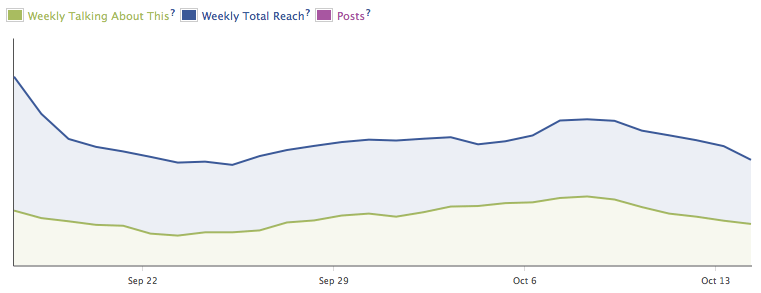
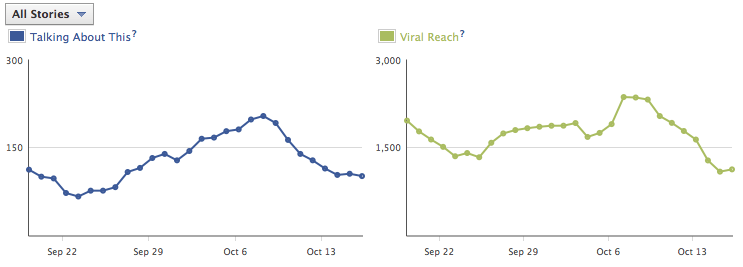
Below these details, there’s a timeline of the ‘Weekly Talking About This’ stat and your ‘Weekly Total Reach’, the graph also claims to show you the number of Posts, but that statistic is so small in comparison, that it doesn’t show up in my graph. On the left you’ll see that I’m reaching a lot of people, but not that many people seem to be responding (talking about this). This graph allows you to compare time periods and see the improvements that you’ve made, as you’ll see that further into the month, my fans start to notice me better and start to respond more. 
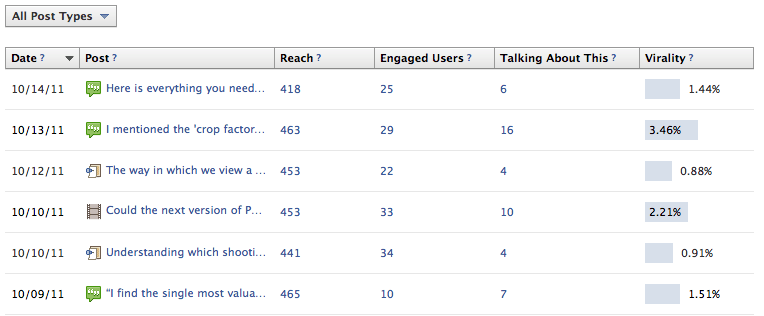
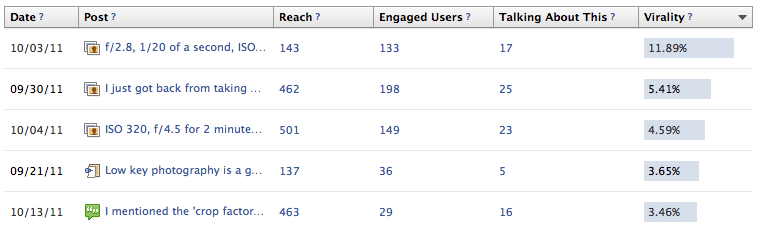
Further down the page, you’ll see all of you page posts listed in the order that you posted them, although they can be rearranged. You do have the option to change the type of pages that you want to see, such as photo, video, post, or link, but I tend to look at all of them because a month long period really isn’t that long. You’ll see from the screenshot below that besides the date, you’re also provided with information such as reach, engaged users, talking about this, and virality. The reach is the number of unique fans that have seen a particular post, engaged users (which is a lot smaller), is the number of people who have clicked on any part of your post, talking about this is the interaction (likes, shares, etc.) and the virality is just the percentage of people reached who had an interaction (talking about this). This is what it looks like.
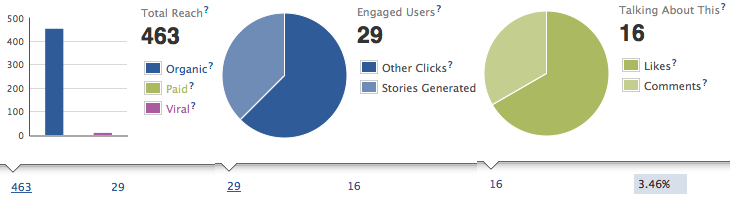
There’s more to all of this than meets the eye though, as you’ll soon discover by clicking on the numbers in the results. When you click on the reach result, you’ll see the amount of organic reach in comparison to the paid and viral reach. The viral traffic is the number of people who have seen the post as a result of their friend engaging with it, such as a like or a comment. When you look at engaged users, you’ll see that Stories Generated has a smaller share, and that’s because it’s the amount of people who have done something that would be seen by a friend who’s viewing their profile. That’s a smaller number than all the Other Clicks put together which can be along the lines of clicking on other peoples names. The Other Clicks section is a strong indicator of the users attention to a post. The Talking About This section is very simply broken down into comments and likes. 
I typically don’t view this section the way that it’s laid out, as I like to organize them to see which is the most popular or effective. You can click on the top bar on the reach, engaged users, the talking about this section, or virality to organize them however you wish. As my page is still in the growing stages, I like to organize by virality so that I can see what makes my fans interesting in what I have to say. It’s easier to work on the interest of the fans that you’ve already got than it is to find new fans. To be fair, it’s worth organizing by all of these factors, as they each tell you something a little bit different about what your fans are interested in.

Fans

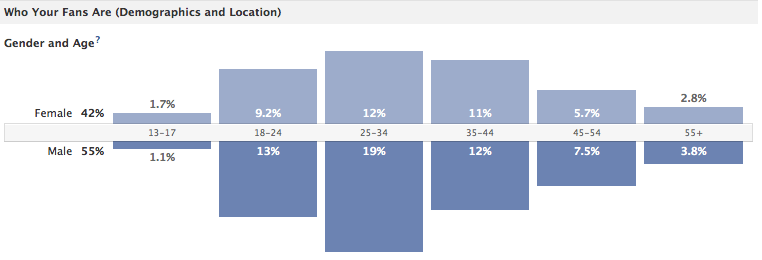
When you enter the Fans tab, you start to see information about your demographic that not even Google can tell you, such as the ages and sex of you fans. Facebook breaks them down into helpful bar-charts as seen below, divided up into percentages of fans. This is particularly useful to know as you can start to direct your writing towards a different demographic. How I may talk to someone in their 20’s is different to how I may speak to someone in their teens on 50’s.
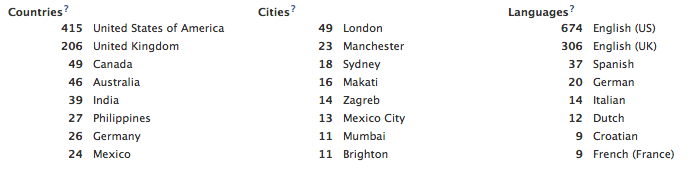
The location of our visitors can be found through Google Analytics, but Facebook provides much more revealing information about the people who are actually going to become dedicated fans. No only do they break up the fans by country, but also by city and language too. The results actually surprised me somewhat, the UK only makes up 10% of my traffic, compared to the 66% that America provides, so I was expecting to see that section a little bit smaller, although I am British and do have British friends who have liked the page so that may explain it though. I don’t have many friends in London so it surprises that it’s my most popular, but I guess that’s because the UK is much more densely populated than America. 
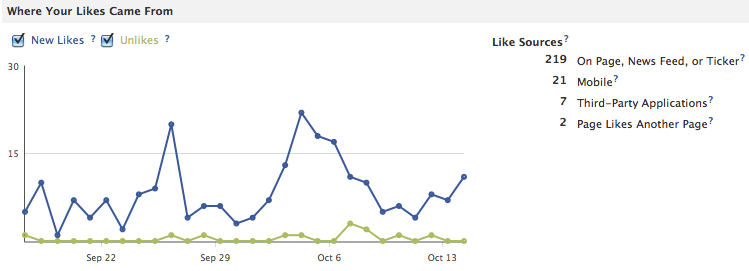
This following section is one of my favorite as you can track when your popularity goes up and down with new like and unlikes. It claims to tell you where your sources come from, but the detail that you’ll see below and to the right is very minor and don’t provide the depth you may be looking for, at least not in this section. It’s good to be able to see which days are the most popular because then you can see which post was most popular that day, who sent you the most traffic, and what you were writing on the fan page, and use all of that information to create content that will provide you with more fans.

Reach

The first thing you’ll notice is that this page looks a lot similar to the Fans section, with a bar chart of the demographics, only this time it’s sorted by your reach. I won’t go into too much detail because after the section above, it’s all fairly self explanatory, and again, you’ll see all of the location info from before as well. Even though the reach is greater than the fans, I haven’t found that my overall results have changed by any noticeable amount, in fact, I expect them to stay pretty much the same for a while now.
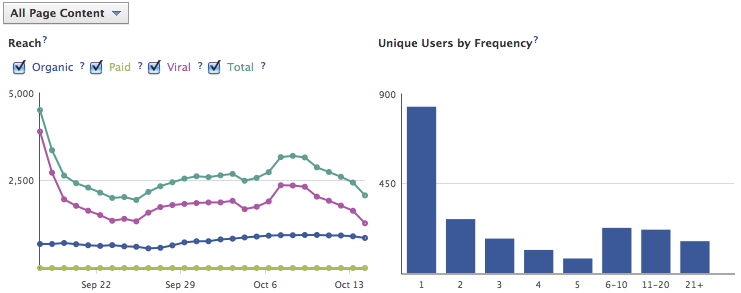
Where it starts to get interesting is when you scroll down to see how you reached people. You’ll see from by screenshot below that Facebook kindly break up all of your traffic into sections of organic, paid, viral, and total reach. This view is a really good way of seeing how effective Facebook can be for Facebook marketing as the number of people who saw the name Expert Photography is greater than the amount of people who saw my page organically. You’ll notice that there’s no stat for the paid reach because I don’t currently run any adverts on Facebook. Please note that these results are not by the day, they’re the day that the previous 6 day period has ended on. The unique users by frequency section on the right, above, is very similar to the visitor loyalty section in your GA. It breaks down the amount of users that you’ve reached, by the number of time that they were reached in a 6 day period, helping you to see how strong your following is. There’s an increase in frequency when you get to the 6-10+ section on the bar chart, which means that you have a strong following as these people are seeing something from your page at least once a day.
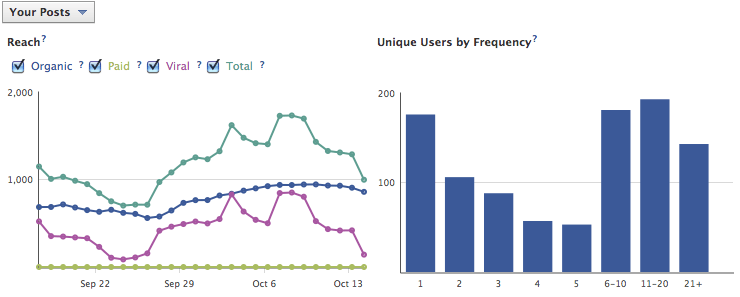
All of these results start to change when we change what sort of content that we want Facebook Insights to examine. When you click on the ‘All Page Content’ tab in the top left, you can change it to select ‘Your Posts’ and you’ll start to see results for only your posts.  You’ll notice that for me, the amount of organic reach is now much higher comparatively to my viral reach. That’s because it includes things such as photos, which I happen to have a lot of, as it’s a photography blog, and a great way to get your name out there. The unique users by frequency is down, but actually provides better results as I see that the people who are actually looking at what I’m posting are doing so more often.  
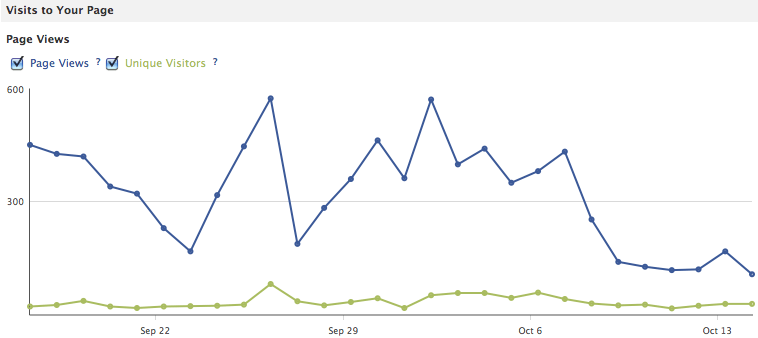
The final section on this page is the ‘Visits to Your Page’, broken down into page views and unique visitors. This can be incredibly useful if you know what you’re looking for as you can see how exactly how many times people have visited your page. When you take this information and compare it with the content that you’ve been promoting, from links and statuses to polls and photos, you can see what drives the most amount of visitors to like your page. One spike that stands out in particular, is the second main one that happened on the 2nd of October. This was a the day that I posted a photo album of an event that I had worked at, and a lot of the people from that event came and viewed my profile. We’ll look at how you can further track this sort of data later on. 
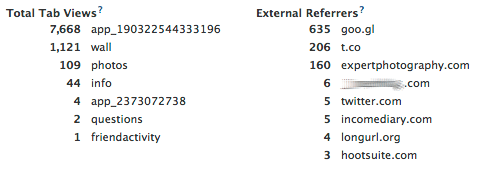
There’s another small section just underneath this which provide information on what exactly was viewed the most, and who sent the visitors. The most viewed tab is the photo viewer application I believe, which stands to reason as my photos are fairly popular, and I’m constantly uploading new content there.
The external referrers results are actually quite surprising to me, and help me to realize how effective or ineffective my methods have been. ‘goo.gl’ is the URL shortener that I use with my Tweet Adder to post daily links my fan page through Twitter, and it’s been much more effective than I imagined. ‘t.co’ is the URL shortener that I use to send people from my Twitter to my Facebook through a personal message, and in the past I’ve found that about 25% of people will click on this link, which seems to correlate well with my results. My own website produces surprisingly low amounts of referrals, despite all the hard work I put into convincing people to come over, but with so many people coming through other means, it’s not necessarily a problem.
Not only does the external referrers section tell me how well my own marketing is going, but it reveals people who are linking to me that I didn’t even know about. Incomediary.com sent 5 visitors in the last month, which is of no surprise, but what’s confusing is that the website I’m blurring out is sending even more. Because this is unusual, I of course check out his website, and I can see straight away that he’s in the making money online niche. You may see where this is going.
Now, because I have a good understanding of how referrals work, and the nature of this niche, my first thought is to search Income Diary in the search box, and sure enough, there’s a list of our post. They’re not simply linked to ID though, they completely reproduce all of the content, including images and links, and the only credit available is a small ‘[viaIncomeDiary]’ at the end of the page. This sort of thing is common when you’re writing good content, and I discovered another website writing suspiciously similar content to me just last night, and there’s things we can do to stop it, but for now I’m blocking out his URL, so that he doesn’t make any more money of our backs.

Talking About This

As I’m sure you’ll know by now, the talking about this stat is all about the number of people who have interacted with your page, whether it’s a comment, a like, or a share, etc. I’ve shared my results because I’m a little bit surprised by them. There’s a spike in the amount of people who are interacting with me in the female ages 45-54, which is useful to know, because that tells me a lot about the sort of shooter they are. When I do my Twitter marketing, I can’t help but notice the amount of profiles that look something like ‘wife, mom, photographer’, and it seems that this is becoming an increasingly popular demographic, which I can easily target my content to. This is just one of the many things you’ll discover when you start to explore your Insights.The final section that you’ll see in your Insights is a graph of how often people are interacting with your page, based on a 7 day period. The great thing about this is that you don’t have to see this in the view shown below, you can always change it so that it looks at different facts, rather then just all the stories. You can change it to page likes for example to see how often someone is liked your page in the last week, as well at the viral reach that comes from that. You can also look at stories from your posts, mentions and photo tags, and posts by other people. 

Looking Further

Facebook have clearly upped their game when it comes to providing useful analytics that you can actually do something with, rather than what they provided you with before. We can take the insights a step further though, by studying what happens on a particular day, one that’s perhaps quite popular, so that we can see what we’ve done and how we can use it to improve. For me that day was the 4th of October, the day after I published an article on the top Twitter users in my niche and I received 22 new likes that day. When you narrow down all the stats to a certain time range, you can see where they’ve come from and what they’re reacting to, which will help guide you in the future when you’re trying to create material that will drive traffic to your fan page.
Overall, I’m very impressed with the new Facebook insights, especially because I didn’t think much of them before. If you don’t have a fan page for your website yet, then you’re behind the times because that’s something you should have started on day one. Get one started and start having a look at where your fans are coming from and market to them to build a following to your website. I link to my fan page and not my website on my Twitter because I know that If I can convert them into fans, I have a good chance of them coming back more than just once.

How I Gained 500 Facebook Fans Overnight

Posted By: Unknown - 00:21


I was going to wait until the new year to write this post, but as I start to see a few more people attempt it, I can see that the effects may in fact wear off very quickly. What I’m talking about is a new idea in viral marketing on Facebook, in which a fan is encouraged to share something, to be in with a chance of winning a prize. I ran a little bit of an experiment myself, and I was very pleased with my results.
I should warn you first, that I’ve since found out that this is again Facebook rules and regulations for these promotions, and had I been a much bigger page, and been reported, there’s a good chance that I would have been banned, or at least been the subject of a strongly worded email. The specific guideline is on line 3 of their promotions guidelines and is as follows: “You must not use Facebook features or functionality as a promotion’s registration or entry mechanism. For example, the act of liking a Page or checking in to a Place cannot automatically register or enter a promotion participant.” That is basically a lot like what I did; I didn’t get caught, and I will be deleting the image now that the competition is up, but it’s certainly a risk. I personally think it’s a bit of a gray area because the reason I give for liking a page is so that they will see their name when they win, and this is a very new type of promotion, so there’s every chance that you’ll get away with it too, but it could be perceived as spammy so be very careful about your decision.
I got the idea from this campaign from the clothing brand Fly53, which was a giveaway of £7,500 worth of clothing, where all they had to do was click share to be in with a chance of winning. This is a fantastic campaign, but I immediately saw some problems (and how they could improve them), which I’ll get to further down the page. One thing that does stand out to me is that they manage to follow Facebook’s guidelines, not follow the guidelines, and mislead all of the fans in just one small paragraph.They follow the guidelines of Facebook by making the readers enter the competition via an app, but as you see, they tell the readers to share the post to be in with a chance of winning. The give the impression that all you have to do is click share, because it doesn’t say anywhere in the text that you have to enter the competition through the app that’s linked in the text. If a big name brand with over 40,000 fans can get away with this, then I should imagine that most people would. I still recommend exercising caution though because the risk may not be worth the reward, and I would hate for any of you to lose your accounts. I imagine there will be a crackdown on this sort of promotion pretty soon.
I wanted to test the water myself, just to see how well it would work, but without spending any of my own money. Without going into too much detail, there’s a lens that I recommend as the first upgrade any budding photography should buy, it’s a lens that I’ve written about in length before, and it’s had a pretty good response. The lens also isn’t that expensive, so getting a hold of one wouldn’t be too hard either. I decided that this would be perfect for my readers to win, but it’s not a decision I brushed over, and you shouldn’t either.
If you think about what you want to achieve by holding this giveaway, it’s ultimately so that you can find new fans for your page, whom you can share your website with in the future, so the prize has to be something that will appeal to them. Not only does the prize have to appeal to people in your niche, but it has to ONLY appeal to people in your niche. Sure, you could giveaway a $200 giftcard for Amazon, but everyone wants one of those, so you’ll likely get it shared by a lot of people who aren’t into whatever your niche is selling. By choosing a lens, I knew that everyone who liked and shared my post, would at least have a digital SLR camera, and would therefore be interested in my content. The unfortunate thing about this rule is that not every niche can do one of these giveaways so easily, in fact we’re struggling to come up with one for Income Diary. We had considered the top 20 business books, but again, that has a much wider appeal than just our niche.
The second thing that I took note of was the worth of the giveaway, Fly53 were giving away £7,500 worth of clothes, but I wanted to only give away between $110-220, so it was a slight risk because I wasn’t sure it was going to work as well. Of course, I knew it was never going to work quite as well, they have around 40,000 fans, and I had just 1700 at the time, and they were also giving away something a lot better than me, but I was still surprised with just how well it has worked.
Ok, so now you’ve chosen a prize to give away, how do you pay for it? Well, there’s three options for that. Firstly, you could just pay for it out of you pocket, and consider it a worthwhile investment in your website. Secondly, you ask for a freebie from whoever makes what you’re giving away, which I’m planning on doing soon with someone who’s already sent me a free camera strap. And finally, you could use your Amazon Associates commissions. Every couple months I promote a new post, where I recommend different products that people should buy, and then use Amazon Associate links to earn commissions. I posted this on my website a couple weeks ago, which links to 70 different products, and since then I’ve earned $179.19 in commission, from that post, and various others. These posts provide me with content to keep my readers updated, and money that I can spend on giveaways.
When you know what it is you’re giving away, then it’s important to share it on Facebook as soon as possible. I actually left a little tease on the Facebook page earlier in the day, saying how I was thinking about arranging a giveaway, and I asked what everyone would like for Christmas. Then I started designing a little image that would contain all the important information, and grab the reader’s attention at the same time. It’s important to put all of the necessary information into the image because you’ll get a better result. Below is the image that Fly53 used, and although their campaign went well, it really doesn’t tell you anything about what they’re doing from the image itself, nor can you differentiate it from the other competitions that they were running, using exactly the same image.I went for a very different design, making mine on Photoshop in a couple of hours. I’m not very good at photoshop, and you don’t have to make it on there, you could easily make a PDF in word and use that instead. When you’re designing your own, it’s important to only include necessary information, detailing very clearly what the reader has to do. For me it was very simple:
1. ‘Like’ Expert Photography on Facebook
2. Share the image on their Facebook wall
The fist requirement was a trick that most people seem to be missing, because if you can get people to like your fan page, then there’s a good chance that you can get them to come to your website multiple times in the future. The reason I gave for making people like the page was so that I could tag their name in the post if they won, and it does have that use, but in reality, I just wanted to be able to market to them again in the future. How much would you pay for 500 new fans on your page? How much would it cost you in Facebook ads to reach it? When you consider those options, this starts to become a very cheap way of generating new fans.
I included a few images at the bottom of the post, before revealing a few finer details about the terms and conditions, such as where I’d ship to, which brand I would be giving away, and when the winner would be announced, but for more detailed information, I used the description of the image on Facebook to really sell it: “To be in with a chance of winning, all you have to do is share this photo on Facebook, and make sure that you ‘like’ the Facebook fan page (so that we can tag the winner). You have to be in the USA, Canada, or UK to be in with a chance of winning, and you have to own either a Canon, Sony, or Nikon DSLR. It’s an essential lens for every camera bag, and even if you already own one, it makes for an excellent present, I’m sure you’ll agree. Happy Holidays!”
With the image posted, it became a waiting game to see how people would react to it, and I didn’t have to wait long at all. I started receiving likes pretty regularly, but I really wanted to promote it, so I decided to ask others to help out. I emailed Jim who has written on this website before and is in the same niche as me (you can see his post here), because he has 15,000 fans on Facebook, and seeing as it’s something every photographer should have, I asked if he minded sharing it with his fans. I did this just 33 minutes after I published the photo, and just 42 minutes later, he had shared it on his Facebook to thousands of people. This is when things really started to pick up.
I don’t have a huge following on Facebook yet, but it’s growing steadily now as the site is also growing. I do however know a few people in my niche though, usually because I’ve included them in one of my top lists, or I’ve been mentioned in one of their lists too, so I can use these relationships to my advantage. You shouldn’t be worried about sharing other people’s content through your own website or Facebook; they are NOT your competition – the success of your website is up to you, not down to how good someone else’s website is.
With this boost from Jim, I was able to reach a lot more people, and the sharing soon grew to hundreds of people. After just an hour and a half, I have 92 new shares and 87 new likes on Facebook, and just 35 minutes after that, the numbers had gone up even further to 185 and 182. I posted the image late in the evening, and when I woke up the next morning, I had 500 new fans on Facebook, which is now up to well over 700. It took a little over 24 hours to reach 500 shares, which meant that people were liking the page and not sharing the image, probably because they were confused by how Facebook works, but I had a feeling that was going to happen because I’ve seen it happen before.
There’s no doubting that the viral nature of this sort of marketing has clearly worked, and when you consider that the average Facebook user has 130 friends (although I suspect it’s more), and I’ve had 592 shares as of writing this (it’s still going up), then my post has been shared to 76,960 people, for what may only be $110.
Not only are people sharing my image, liking my page, and visiting my website, but they’re also talking about my website. The ‘talking about this’ statistic underneath the fan page likes, will dramatically increase from this, and that will cause Facebook to include more of my content in people’s news feed, as I will be considered to be worthy.
When you’ve got your big new following, you’ll find that there are more people interacting with the content that you put up. I put up my first article since the campaign started, and where I would usually get up to about 6 likes, and a couple comments, I received 15 likes, and 8 comments. This increases reader interaction, and helps my website to grow.
There are a few things that I would have done differently to how I’ve done it, for example, I’ve said that I’ll announce the winner on Christmas day, which is when I planned on ending it, but it’s started to lose steam, and I think that 24-48 hours would have sufficed. Next time I do one, I will probably be giving away a camera strap, and for that, I’ll only doing it for 24 hours. That giveaway is going to be part of a promotion for both my website, the strap, and the commission that I can earn through Amazon, so not only will it not cost me any money, but I’ll be able to actually earn money too. I also would have widened the area that I would have sent the lens too as well, because I have a fan base in Australia who couldn’t enter the competition, so that’s something I will consider next time.
If I were to run the competition again, I would definitely run it through the app, and follow the Facebook guidelines, because it’s taken me a long time to get to the point that I’m at today, and I would hate to lose it all. It’s been a very interesting experiment and I’m glad that I’ve done it, but those rules are in place for a reason, and I’m sure Facebook wouldn’t feel bad at all about quickly deleting your page from their servers. Since the promotion started just 6 days ago, I’ve had over 750 new likes, 592 shares and around 200 comments, all for the cost of a cheap lens. I chose my winner and, although I’m yet to hear back (don’t worry, I will definitely chase them up), everything has ended up a little bit better than expected.

Copyright © 2013 Best Traffic Visit™ is a registered trademark.

Designed by Templateism. Hosted on Blogger Platform.